Main LogoLight Logo
  • Reviews
  • Top 10
  • How To
  • Tech News
  • OS
    • Windows
    • MAC
    • iOS
    • Android
  • Categories
    • Driver Updater
    • Cyber Security
    • Games
    • Fitness
    • Entertainment
    • Tips & Tricks
Top 10 Windows
by Jyotsana

19 Best Free Document Scanner Software for Windows 10 in 2024

March 12, 2024
1

Searching for best document scanning software for your Windows device? We got it covered for you. Stay glued till the end of the article to find the best free scanner software for Windows 10, 11 or other older version devices.

Let’s not talk about the tremendous programs and hacks that this temporary technology is gearing up with everyday. Since we are not living in an oblivion far from the reach of this steady evolution, we are perhaps introduced with the convenience of many free document scanning software that, once upon a time, used to be traditional. Today, through this article, we are going to shed some light upon the best document scanner software that you can use in 2024.

Table of Contents hide
Why Free Scanner Software?
What Are the Best Free Document Scanner Software for Windows 10?
1. NAPS2
2. CamScanner
3. ScanSpeeder
4. PaperScan
5. CloudScan
6. SimpleIndex
7. HP Scan and Capture
8. Office Lens
9. Free Scanner
10. PDF Document Scanner
11. Readiris Pro
12. Alaris Capture Pro
13. Adobe Acrobat DC
14. ABBYY Fine Reader
15. OmniPage Standard
16. VueScan
17. Online Photo Scanner
18. Kofax Express
19. FileHold
Scanning Software – FAQs

Why Free Scanner Software?

You have a bountiful of reasons to acknowledge that have accelerated the need of document scanning software for PC and mobile phones and have vanquished the hustle and bustle of to-dos. Here are the results that can prompt you to ease yourself with this helpful and quick tool.

  1. The first and most important reason to install a scanner software free is that using it rids you of the baggage of physical documents and more or less, aids in the contribution towards the environment. (Don’t underestimate the less paper-faced clutter in your office.)
  2. With free scanner software you can preserve the documents you cannot afford to cast off.
  3. Scanner software for PC or mobile phones will help you in effortlessly editing the documents.
  4. It favors efficiency and promotes easy sharing.

Read Also: Best Free PDF Editing Software For Windows

What Are the Best Free Document Scanner Software for Windows 10?

There is more than just a single best free scanning software for Windows 10 because of amplified and varied features offered by many PDF scanners that touch different standards of requirements. We have collected the best free scanner software that certainly makes the document errands run smoothly and efficiently along with many other well-engineered features that you may want to use in future. Go through the list to find the perfect document scan software freeware or a paid version that fits in well with your requirements.

1. NAPS2
NAPS2

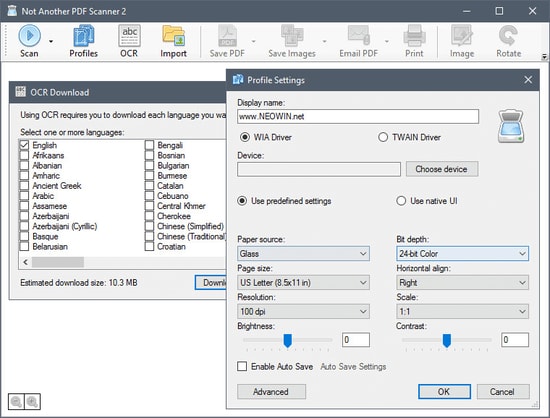
NAPS2 (Not Another PDF Scanner 2) is an amazing free scanner software to humble you with its relaxing functionality. For those who are keen to save their precious time and avoid hand-wringing on multiple clicks, this best document scanner software is a boon.

Notable Features of NAPS2:

  • This PDF scanner is compatible with all file formats.
  • The OCR tool (Optical Character Recognition) supports over 100 languages.
  • It supports WIA and TWAIN.
  • It allows you to combine documents along with tweaking and finishing the resolution, paper size and more.
  • It is open source and also makes the process of scanning documents fast and effortless.

Pros

  • Easy-to-use interface
  • In built OCR engine
  • WIA & TWAIN support
  • Open source
  • Available for Free

Cons

  • Lacks advanced features

Download Now


2. CamScanner

CamScanner

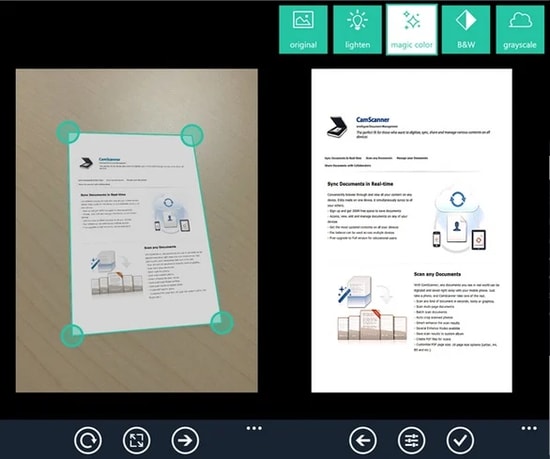
CamScanner is another free scanner software for Windows PC users to help them with the editing, conversion and even, wireless printing functions. It is one of the best photo and document scanning software available out there.

Notable Features of CamScanner:

  • OCR is supported by this document scanning utility.
  • It allows you to sync, share and combine the data.
  • You can go for wireless printing.
  • It features auto-correction of images.
  • It has a user-friendly interface.

Pros

  • Intuitive and clear User interface
  • Combine multiple images
  • Advanced Features
  • Eliminate background elements.

Cons

  • Multiple in app purchases
  • Occupies large space

Download Now


3. ScanSpeeder

ScanSpeeder

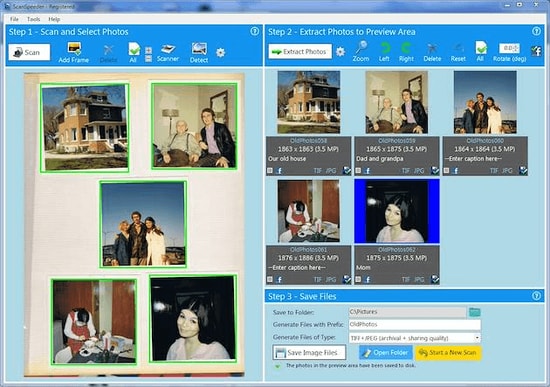
The next alternative for a free scanner app Windows 10 is ScanSpeeder. It is one of the best document scanner software for Windows 10 to use easily. Even if you are not a techy person, this tool will help you in the smoothest and most efficient way possible, be it editing the documents and photos or sharing them.

Read Also: How to Turn PDF into Word Document

Notable Features of ScanSpeeder:

  • ScanSpeeder allows you to crop, straighten and adjust the overall composition of documents and photos.
  • It is easy-to-use and delivers the functionality in a snap.
  • It has a free trial version to let you explore its supersmooth service.

Pros

  • Can be used for both personal and professional purposes
  • Automatic backup to keep data safe
  • Notifies if automatic Backup process fails
  • Restoration of data is easy

Cons

  • Functionality is weak
  • Basic features only

Download Now


4. PaperScan

PaperScan Scanner Software

Get yourself relaxed with this best free scanner software with a graphic user interface. It converts documents into PDF and supports multiple file formats at your best convenience. It offers free as well as pro version.

Notable Features of PaperScan:

  • It features the flatbed support.
  • It supports multiple file formats including PDF, JPEG, PNG, JBIG2 and TIFF.
  • It has integration with WIA and TWAIN.
  • It features auto-correction of images.

Pros

  • Free Version Available
  • Encrypted PDFs
  • Multiple device support
  • Over 30 languages supported

Cons

  • Annoying ads
  • Free version offer basic functions only

Download Now


5. CloudScan

CloudScan

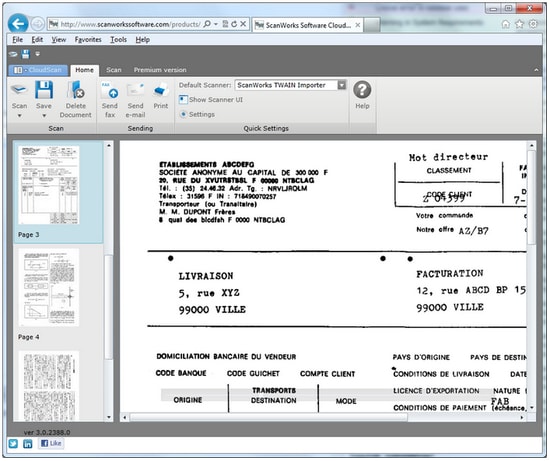
Made for the hassle-filled times when you just wish to save added office tasks, or to convert them into the quickest pace, CloudScan is everything you need. This free scanner software for PC features a user-friendly interface and allows you to share the files with other networks.

Notable Features of CloudScan:

  • It features easy sharing with networks.
  • It allows you to scan and convert files steadily.
  • It allows you to edit the documents easily.

Pros

  • Beginner friendly interface
  • Simple settings
  • Does not require any additional set up
  • Reads invoice layout for any doc

Cons

  • Advanced features missing
  • Pricing is comparatively higher

Download Now


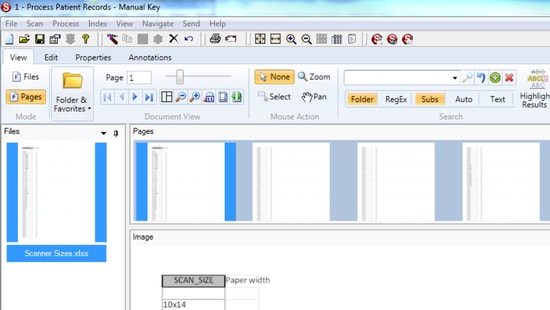
6. SimpleIndex

SimpleIndex

Make most of the digital perks to use for documents with this amazing PDF scanner application for PC. It comes with a number of easy to use features, making it one of the best document scanner software for Windows 10, 8, and 7.

Notable Features of SimpleIndex:

  • It is time-saving and affordable.
  • It indexes the documents in sequence.
  • It supports ISIS and TWAIN.

Pros

  • Clean and easy interface
  • Electric Imprinting
  • Reliable software
  • OMR option to mark checkboxes
  • Cons of SimpleIndex

Cons

  • Bit Expensive
  • Cannot be integrated with mobile device
  • Compatible with Windows device only

Download Now


7. HP Scan and Capture

HP Scan and Capture

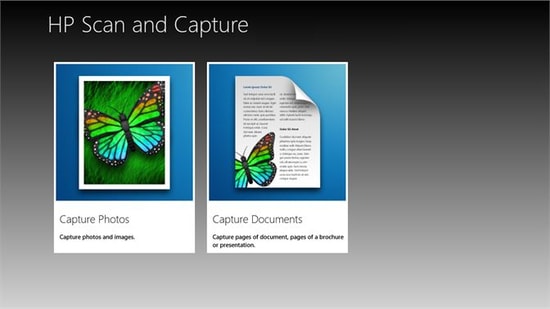
Rejoice in this free document scanning software made for Windows 10. HP Scan and Capture tool allows you to convert the document into PDF and then save it in the local storage. Let’s have a look at some of its other potent offerings that make it one of the best free document scanner software available for Windows users.

Read Also: How to Convert PDF to Excel Offline

Notable Features of HP Scan and Capture:

  • It features easy document management as it detects HP devices and allows users to scan and edit the documents.
  • It is compatible with other devices.
  • Files can easily be saved in local storage.

Pros

  • Scan documents in bulk
  • Handwritten docs can also be scanned
  • Simple UI

Cons

  • Only available for Windows

Download Now


8. Office Lens

Office Lens

Office Lens is known as the best PDF scanner application for Windows 10 operating system and lets you convert your documents into PDF and share them. It betters productivity and is incredibly useful in enhancement of various types of files.

Notable Features of Office Lens:

  • It can be accessed in both the Windows and the mobile phones.
  • This free scanner software supports OCR (optical character recognition) functionality.
  • The files can be saved in local storage types such as PDF, picture, Word or Excel.

Pros

  • Easy to use
  • Scan documents through different devices
  • Complete integration with OneDrive
  • Easy sharing and accessibility
  • Available for free

Cons

  • OCR feature requires manual work
  • Default options are ordinary

Download Now


9. Free Scanner

Free Scanner

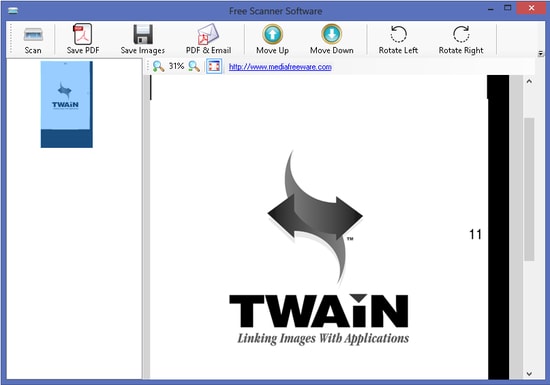
As the name suggest the free scan software Free scanner is packed with essential features. This free scanning software for Windows 10 may prove to be of big help to you. Enhance document scanning efficiency with this amazing free scanner software which features an user-friendly interface.

Notable Features of Free Scanner:

  • It is compatible with the network scanners.
  • It supports various file formats.
  • It supports Windows 10, 8 and 7.

Pros

  • Simple to use
  • Beginner friendly
  • Supports multiple languages
  • Multiple scanning options
  • Customisable

Cons

  • Poor UI
  • Performance issues

Download Now


10. PDF Document Scanner

ez PDF Document Scanner

This easy-on-mind PDF scanner software free features important functions such as scanning, editing, conversion of files into other formats. Apart from this, below are some of its prominent features that make it one of the best scanner applications to scan documents to PDF.

Notable Features of PDF Document Scanner:

  • It allows adjustment and enhancement of documents.
  • The digitized files can be saved to external sources and cloud storage.
  • It is free to use.

Pros

  • Customize documents
  • Scan multiple file formats
  • Open source and Free
  • Available for multiple formats

Cons

  • Does not support low end devices

Download Now


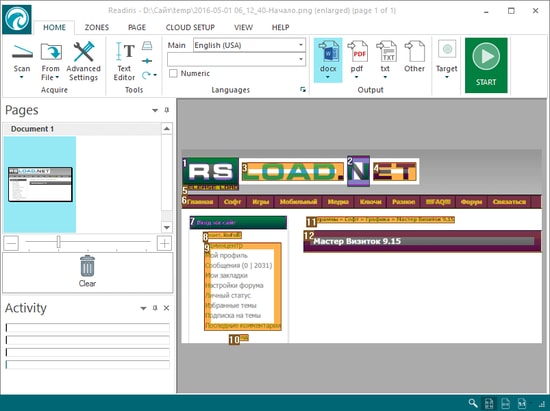
11. Readiris Pro

Readiris Pro

Readiris Pro is one of the best document scanner software for PC offering you multiple choices in editing and converting any document in required format. Moreover, it is user-friendly and is compatible with all editions of Microsoft Windows operating system.

Read Also: Best Duplicate Photo Finder for Windows 10

Notable Features of Readiris Pro:

  • It supports all file formats such as PDF, JPEG, HTML, TXT, GIF, PNG and more.
  • It features GUI and supports TWAIN.
  • It supports over 130 languages.
  • It features easy sharing.

Pros

  • Graphical user Interface is highly intuitive
  • Share Text with users for reviews
  • Convert video to audio files
  • Add digital signatures to your docs for data security
  • Convert docs to PDFs

Cons

  • Keyboard shortcuts are missing
  • Multiple pricing plans makes it complicated to work on Free version
  • Toggle between different functions is difficult

Download Now


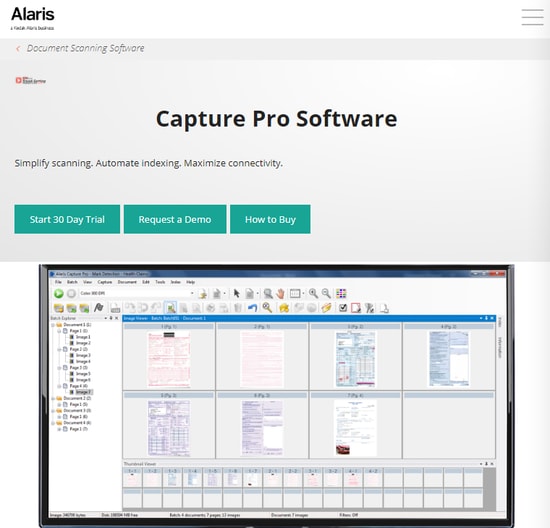
12. Alaris Capture Pro

Alaris Capture Pro

Alaris Capture Pro is one of the best document scanning software for Windows 10 that comes with a lot of amazing features. It has functions such as data indexing, neat scanning along with its ability to scan multiple documents and data capturing.

Features of Alaris Capture Pro:

  • It features OCR and barcode reader.
  • It allows the conversion of PDFs into editable documents.
  • It features the barcode reader.
  • It supports WIA and TWAIN.

Pros

  • HD images with the Perfect Page feature
  • Workflows are streamlines
  • Microsoft SharePoint integration

Cons

  • Free version has limited features
  • No option for single document scans
  • Rotate, crop, or other basic features missing.

Download Now


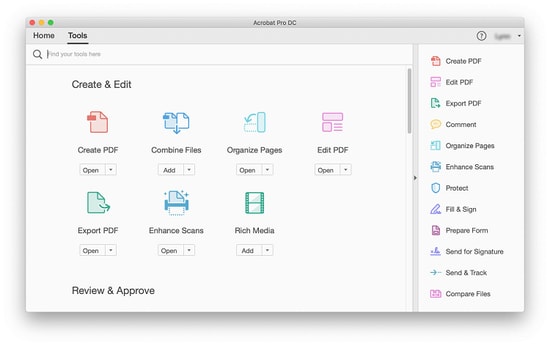
13. Adobe Acrobat DC

Adobe Acrobat DC

If there is a software in this list which you may already be familiar with, it has to be Adobe Acrobat DC. It is a go-to PDF scanner for its exciting features that you cannot skip. View, edit, print the documents and you can share them with multiple users. Let’s stretch a little more to the parameters of its multiple features.

Notable Features

  • Share, edit, scan, and even sign.
  • It renders your data secure if you are an individual user.
  • It makes words such as collaborate and organise sound handy and easy.
  • It is integrated with Adobe Document Clouds and thus, the commenting and sharing come easy.
  • Not to mention, you have a choice to archive and store the files.

Pros

  • Simple User interface
  • Quick searches with indexing feature
  • Edit data and texts even in the tables
  • Maintain consistency through Templates

Cons

  • Issues while launching
  • Frequent Freezes and crashes

Download Now


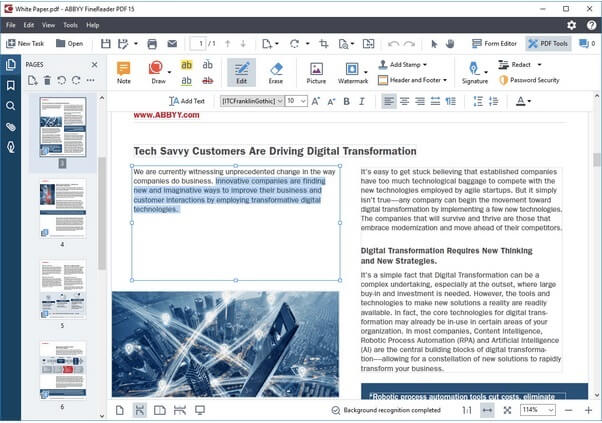
14. ABBYY Fine Reader

ABBYY Fine Reader

Here comes the next one on our list of best document scanning software i.e ABBYY fine reader. For all those who are looking for a professional photo and document scanning tool, ABBYY Fine Reader can be the best free document scanner software to use. This file sharing software offers a huge list of features that makes it easy for you to scan and edit the document easily. Apart from just editing all the documents single-handedly, you can collaborate with your colleagues and edit in real-time.

Notable Features of ABBYY Fine Reader

  • Using ABBYY Fine Reader you can convert into various formats.
  • It lets you compare various documents of different formats easily.
  • The software offers high document accuracy.
  • You can edit in real time with your colleagues.

Pros

  • Supports multiple languages
  • Advanced functionalities available
  • Simple and intuitive interface
  • Excellent performance

Cons

  • Versioning is unavailable

Download Now


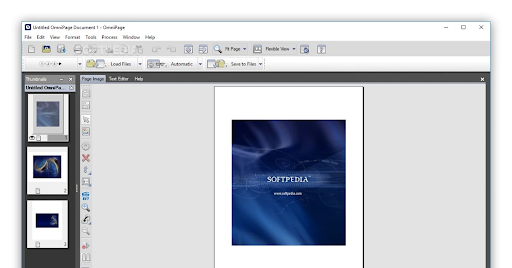
15. OmniPage Standard

OmniPage Standard

Nextly, we have OmniPage Standard on our list of the best document scanning software. It is highly popular for its high-speed scanner and the ability to read touchscreen monitors and pads. As far as the features are concerned, below is what you should know about this software before giving it a well-deserving try.

Notable Features of OmniPage Standard

  • High accuracy
  • Easy-to-use tools and flexible options
  • Retains the formatting of the original document
  • One-step Kindle integration
  • Recognizes 120+ languages
  • Supports multiple formats such as PDF
  • Support for Microsoft Office, HTML, and Corel WordPerfect
  • Converts any photo into a readable format
  • Best-in-class OCR capabilities

Pros

  • The user Interface is clean
  • Great Customer support
  • Add the required text to your images
  • Export docs or images to your social channels such as Facebook

Cons

  • Limited features in Free version
  • Paid option is quite Expensive

Download Now


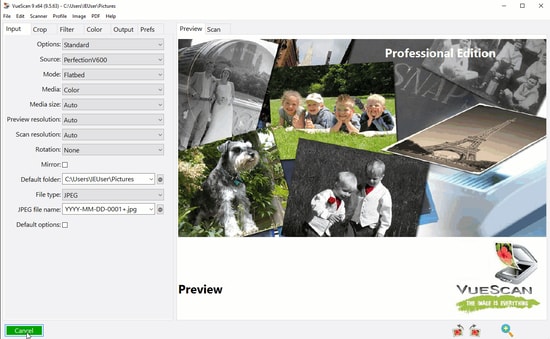
16. VueScan

VueScan

The next best free document scanning software on our list is VueScan. If you are looking for an easy alternative this one right here is a beginner friendly tool. One major advantage of the software is you can scan unlimited documents. So if you are working with an organization and have multiple documents to scan make use of VueScan.

Notable Features of VueScan:

  • Scan PDFs as single or multiple page documents
  • Automatically detects colors
  • Scan JPEG, TIFF, and other format images.
  • Automatic naming of files
  • Integrated Photoshop to edit
  • Scan films
  • Available for Windows, Linux, and macOS
  • Advanced controls for Scanning
  • Timely updates

Pros

  • Free Trial version available
  • Multiple options to customize
  • Scanning quality is High
  • Scans PDF, JPEG, and other file formats

Cons

  • Outdated user interface
  • Performance issues

Download Now


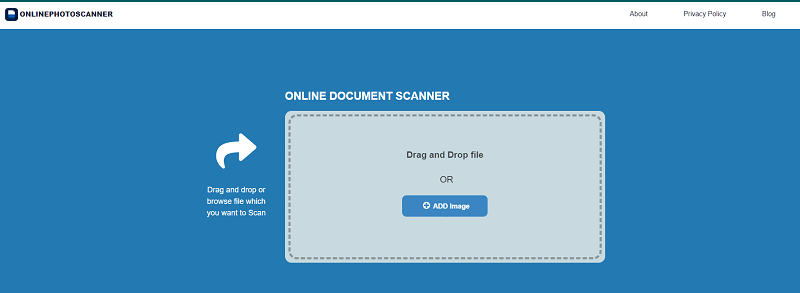
17. Online Photo Scanner

Online Photo Scanner

The last tool on this list of the best free document-scanning software is Online Photo Scanner. Just like the name of the tool, Online Photo Scanner allows you to scan your pictures and images online. This makes it quite feasible for beginners and professionals to scan the images instantly without downloading any tool.

Notable Features of Online Photo Scanner:

  • Works on multiple OS
  • No need to download a standalone tool.
  • Instant results
  • Simple user interface
  • Smart performance
  • Reliable scanning features

Pros

  • Completely free
  • Drag and drop support
  • Download as an image or PDF as required

Cons

  • Limited features for scanning
  • Can not match the relevance of paid tools.

Download Now


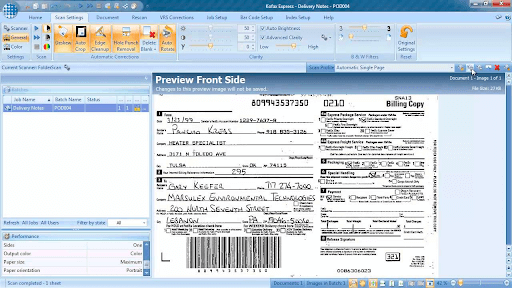
18. Kofax Express

Kofax Express

Next, we have Kofax Express on our list of the best document scanner software for distributed picture capture and high-volume scanning tasks. It boasts all the essential features, such as a simple “point-n-click” scan and the following offerings to justify its position in this article.

Notable features of Kofax Express

  • Boasts a barcode reader
  • Supports document indexing and PortScan processing
  • Helps you with faster document digitization
  • Round-the-clock customer support

Pros

  • Effortless batch scanning
  • Support for web platforms, cloud, and SaaS
  • Top-notch image correction after scan

Cons

  • Outdated interface
  • Some unfixed bugs

Download Now


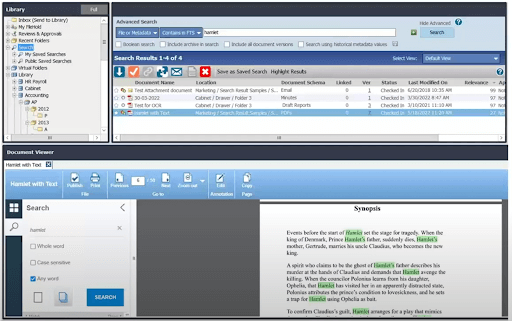
19. FileHold

FileHold

FileHold is the next name on this list of the best free document scanner software for Windows. This tool is not an ordinary one. Using this professional solution, you can easily manage online and offline documents.

Notable features of FileHold

  • Allows you to upload and digitize documents
  • Sign document online
  • Easily accessible on phone, Windows, and more.

Pros

  • Easy to use
  • Smart UI
  • Beginner friendly

Cons

  • Can be too expensive

Download Now


Scanning Software – FAQs

Q1. What is scanning software?

Answer: Scanning software is a tool that enables editing documents or pictures instantly before storing them digitally. In addition to this, the software can help you convert the scanned docs or photos into a PDF format and make changes or edit them quickly. Go through the full list in the article above to find the best scanning software for Windows 11, 10, 8,7.

Q2. What is the best free scanning software for Windows 10?

Answer: The most commonly used and one of the best free scanner software for Windows 10 is Adobe Acrobat DC. The free version of the software has restricted functionalities that can be unlocked by switching to the upgraded premium version.

Q3. How do I scan a PDF file in Windows 10?

Answer: The above article mentions a list of free scanner software for Windows 10, 11, or older version devices. These doc scanner for PC can scan PDF file and allows users to edit or make changes to them quickly and easily. Adobe Acrobat Dc is one of the best scanner software to scan PDFs, images, or other documents.

Q4. Can I scan documents using Adobe Acrobat for free?

Answer: Yes, Adobe Acrobat enables users to scan documents for free. But the free version of this best document scanning software has restricted features. To use the whole capability of the tool upgrade to the premium version.

Q.5 What is the best free photo scanning software?

The best free photo scanning software for Windows is CamScanner, ScanSpeeder, CloudScan, and OfficeLens. These tools provide some of the best and the most advanced features ever for your scanning requirements.

Q.6 What is the best scanner for Windows 10?

Tools like CamScanner, ScanSpeeder, CloudScan, and OfficeLens are some of the best scanner for Windows 10. Using these, you can scan any type of document with ease.

Q.7 Is the Windows Scan app free?

Yes, the Windows Scan app is free to download and use on any supported Windows device for every user globally.


Conclusion

That’s a wrap from our end on our list of best scanning software for Windows10, 11 or older version devices. These best free scanner software are bagging increased popularity due to their efficient features and added functions that we all have been deprived of in traditional scanning. Besides, the fact that it cuts costs, reduces the utility of paper and of course, eliminates the loss of important documents and of course, saves the ever-growing size of bundles of documents.

And returning back to here, we hope this list helps you in figuring out the best document scanner software. Tell us about it in the comment section below.


Author

Jyotsana

Jyotsana is a technical writer with a non-technical background. An eye of detail and a knack for writing helps her to write technology related content.
Apart from writing, she is a coffee connoisseur and an aesthete who rejoices in poetry and music during leisure.

View all posts

Related Posts
[Fixed] Headphones Not Working On Windows 10

[Fixed] Headphones Not Working On Windows 10 {Quick Methods}

January 15, 2021
0

Have you ever encountered an error message saying “headphones not working”? If the answer is yes then you are at the correct place, Our blog here will discuss the underlying issues behind headphones not working on Windows 10 along with all the possible fixes.

If your headphone has been annoying you for a long time here are some tried and tested troubleshooting tricks that can help you pair your headphones perfectly.

Most Recommended Method: To Fix Headphones Related Issues on Windows 10

One of the main reasons behind headphones not working is outdated and broken drivers. If this is the case tech experts recommend using a feature-rich drive updater tool like Bit Driver Updater to solve the issue with the utmost ease.

Windows Download Button

Before moving on to the other workarounds, let’s first take a look at some underlying reasons behind headphones not working problems.

Common Reasons Behind Headphones Not Working On Windows 10

Here are a few underlying reasons which can result in headphones not working properly.

  • A damaged cable can be one of the main reasons.
  • You may also face issues with your headphones if the Bluetooth connectivity is not proper.
  • Apart from this, improper synchronization between the audio and video streams can also cause Windows 10 headphones not working issues.
  • You may also encounter problems when the related drivers are outdated or corrupt.
  • Dust and dirt can also result in the headphone jack, not working issues.

Now that we are fully aware of the many reasons behind Windows 10 headphones not working let’s have a look at some of the possible solutions and fixes.


Quick Methods To Fix Headphones Not Working On Windows 10 Computer

Try the below-mentioned methods to fix your headphones and enjoy the uninterrupted experience.

Method 1: Properly Plug In The Headphones

This one falls in the category of preliminary checks and solves the headphone jack not working issue in most of the cases. To do so follow simple steps

  • Plug your headphones to your Windows 10 device.
  • Restart your device and check if the headphones’ not working issue has been resolved or not. If not read ahead to find more about the other methods.

Read Also: How to Fix No Sound Issues in Windows 10 PC


Method 2: Set Your Headphones As The Default Device

Another method that can help you solve headphones, not working problems. Here’s how you can do it.

  • Launch the Control Panel on your Windows device.

Launch the Control Panel on your Windows device

  • Open the Hardware option followed by the Sound Option.

Open the Hardware option followed by the Sound Option

  • Now from the list of items displayed select Sound.
  • Here, you need to select the Headphones/Speakers tab and then click on the Set Default button.

Select the Headphones Speakers tab

  • Finally, click on the OK button.

Read Also: Best Free Sound Equalizer for Windows 10


Method 3: Enable Your Playback Device

Enabling your playback device can also help you fix all the problematic areas related to headphones. Ensure that your playback device is set on the enable mode to enjoy seamless working. Follow the below-mentioned steps to do so.

  • On your Taskbar right-click on the Speaker icon.
  • Next, select the Sounds Option.
  • Click on the Playback Tab and check if the headphone option is visible if not right-click anywhere on the window and then click on the Show Disable devices option.
  • In the next step select Headphones and enable it by clicking on the Enabled button.

Select Headphones and enable it

  • Finally, click on the OK button

Check if the headphones are now working on your PC if not move to method number 4.


Method 4: Check The Settings Of Realtek HD Audio Manager

Another underlying reason behind the headphone jack not working can be the incorrect setting of your Realtek HD Audio Manager. Check if it is properly configured.

  • Launch Realtek HD Audio Manager on your Windows 10 device.
  • From the upper right corner click on the folder icon.
  • From the Connector Settings Window choose the Disable front panel jack detection option.
  • Click on the OK button.

Read More: How To Download Realtek Card Reader Driver For Windows 10


Method 5: Uninstall IDT Audio Device

This is another simple method that will help you fix headphones, not working issues.

  • Press Windows+X key from your keyboard.
  • Now from the pop-up menu choose Control Panel.
  • Next, select the Programs and Features tab and then select the IDT Audio Driver.
  • Right-click on it and select the uninstall button.
  • Now restart your computer and see if your headphones are working properly.

In most of the cases, the above mentioned preliminary checks will help you solve the Windows 10 headphones, not working issues. However, if you are still facing issues running it, then try our final fix.


Method 6: Download & Install Latest Audio Drivers On Windows 10 (Experts-Recommended)

The last and the most recommended solution to fix headphones not working on Windows 10 is updating your audio drivers to the latest and most compatible version.

Outdated and broken audio drivers make your headphones error-prone and can result in unwanted issues. You can consider using the manual update methods for it but it has its own set of loopholes and does not promise accurate results.

Experts recommend the use of an automated driver updater tool like Bit Driver updater that can effortlessly detect all problematic drivers and correct them in no time. It is a feature-rich tool that regularly checks your device for outdated drivers.

Bit Driver Updater software

Here is how you can solve the headphones not working issue using this automated tool.

  • Download Bit Driver Updater and launch it on your Windows 10 PC.

Windows Download Button

  • Next run a quick system scan to check all missing, corrupt, broken, and outdated drivers.
  • From the list of items displayed choose which all drivers need maintenance and let the tool update them with their latest versions.
  • Restart your device now.

Headphones Not Working On Windows 10 [Fixed]

The aforementioned tricks and hacks provide an easy way to solve the headphones not working issue. In most of cases, preliminary checks can resolve the issue for you but if it persists you can consider updating your audio drivers to seamless working.

Best Task Management Apps for Mac

9 Best Task Management Apps for Mac in 2024

January 31, 2024
0

In this article, we talk about the best to-do list apps for Mac to boost your productivity.

Do you often end up missing deadlines or do a lot of your personal and professional tasks remain pending? If yes, you need a bit of planning and sorting in your busy life. With properly planned, sorted, and prioritized tasks, living up to your commitments becomes easier. And the best task management apps for Mac help to a great extent when it comes to the proper organization of various tasks.

Moreover, the best to-do list apps for Mac enhance your productivity as they minimize the chances of chaos during the day. Many users use them to complete tasks well within deadlines and have well-organized days.

How to Choose the Best App for Task Management on Mac?

Here are a few factors that you should consider when choosing the best task management app on Mac.

  • Standards and consistency.
  • User interface.
  • Minimalist and aesthetic design.
  • Task productivity.
  • Ability to create easy-to-deploy integrations within the user’s ecosystem.
  • Allocation and task scheduling functionality.

Thus, this article introduces you and all our readers to the best task managers for Mac. These apps help you plan and organize all your tasks during the day. Let us proceed toward them without any further ado.

List of the Best Task Management Apps for Mac in 2024

You may use the following to-do list apps for Mac to manage all your tasks perfectly.

1. Microsoft OneNote

Microsoft OneNote

OneNote is a well-known productivity application from Microsoft. Available for all platforms, including Mac, this software boasts many praiseworthy features, such as anytime data access, the option to highlight notes, and a lot more.

Let us look at all the wonderful features of Microsoft OneNote which make it one of the best task management apps for Mac.

Key features of Microsoft OneNote

  • Section creation, page addition, table insertion, image/audio/meeting details/sticker placement options
  • File syncing with SharePoint and OneDrive
  • Text extraction from images
  • Ease of use
  • Many collaboration and sharing options like a shared notepad

Pros

  • Add images, tables, and even audio recordings.
  • Excellent for productivity.
  • Data synchronization across different platforms.

Cons

  • To access full features, one requires a Microsoft 365 subscription.

Download Now

Also Read: Best Mac Cleaner Apps to Clean and Optimize Your Mac


2. Todoist

Todoist

Next, we have Todoist on our list of the best to-do list apps for Mac. It is an easy-to-use software with a simple login process and a variety of useful features.

Some of the most fascinating features of Todoist include a priority-setting option, deadline reminders, and sharing tasks via email. In addition to this, the following are the other notable features of Todoist.

Key features of Todoist

  • Available as a browser extension
  • Lets you use Siri
  • Availability of the today widget
  • Facilitates project collaboration by assigning tasks to others
  • Personalized productivity trends to help you track your progress
  • You may set recurring due dates

Pros

  • Filters to spot important tasks.
  • Project templates.
  • Extensions for popular web browsers.
  • Lightweight and robust app.

Cons

  • The interface is a bit tricky for beginners.

Download Now


3. Things3

Things3

Things3 is yet another to-do list app for Mac that is easy to use and has a plethora of features. The option to create tasks based on projects is something we like the most about Things3.

Moreover, note addition, tagging, scheduling, and breaking it into smaller parts are some other Things3 features that attracted us. Furthermore, below is what else this software offers to deserve the title of the best task manager for Mac.

Key features of Things3

  • Lets you create goal-based projects and a to-do list to reach these goals
  • You may add headings to structure your list and outline the plan
  • Area creation for all life spheres, such as family, finance, work, etc.
  • Date-based sorting of tasks

Pros

  • Neat user interface.
  • Easy to use.
  • Separate areas to differentiate tasks.
  • Sorts tasks based on dates or events.

Cons

  • It’s a bit expensive.
  • Web application unavailable.

Download Now


4. OmniFocus3

OmniFocus3

The next software we would like to include in this list of the best Mac to-do apps is OmniFocus3. What we liked the most about this application is that it lets you choose whether you wish to store your data in the cloud or on your device.

Moreover, OmniFocus3 is an easy-to-use application with a simple UI and the following remarkable features.

Key features of OmniFocus3

  • Lets you create tags for priorities, locations, energy levels, people, and more
  • Forecast view to see all your calendar events and tasks in order
  • Easy setting up of repeating tasks
  • Inbox to quickly add, save, and organize tasks
  • End-to-end encryption to keep your data secure
  • You may add notes to tasks for additional information
  • Option to add attachments like graphics, audio, video, etc.
  • Review perspective to go through all your tasks and projects
  • Mail Drop to add tasks through email using IFTTT and Zapier
  • The Today Widget to view the most important items
  • TaskPaper Text support

Pros

  • Simple and quick navigation.
  • Option to review the efficiency of the assigned tasks.
  • Clean UI.

Cons

  • 14-day free trial.

Download Now

Also Read: Best Uninstaller for Mac to Completely Remove Unwanted Apps


5. TickTick

TickTick

TickTick is yet another great to-do list app for Mac you may use to organize your tasks. It packs all the necessary features in a minimal UI. Talking about the interface of this app, it is extremely easy to understand and navigate.

As far as features of TickTick are concerned, it boasts some of the most wonderful options like task addition via Command+Shift+A shortcut and the ones listed below.

Features of TickTick

  • Instant reminder for tasks you have added to the app
  • Priority level setting for tasks
  • Flexible recurring tasks setting
  • Task sorting by priority/date/order/name
  • Syncing of tasks across all your devices
  • Availability of task summary
  • Options like a habit tracker

Pros

  • Shows a summary of all tasks.
  • A habit tracker option is available.
  • Run on numerous platforms.
  • Easy to understand interface.

Cons

  • Calendar feature is missing from the free version.

Download Now


6. Structured

Structured

Let us now take a look at Structured, a beautiful and one of the best task management apps for Mac. It boasts a pretty UI and many features like icon-based differentiation of tasks to attract users.

Moreover, Structured uses an approach similar to a flowchart to help you complete the assigned tasks with ease. Furthermore, below are some other features that brought Structured to this position on our list of the best task managers for Mac.

Key features of Structured

  • Inbox for easy task capturing
  • Importing of calendar events
  • Reminders app support
  • Availability of iCloud syncing
  • Notifications so that you do not miss any tasks
  • Option to set recurring tasks
  • Notes and sub-tasks to make it easier to accomplish big tasks
  • Over 500 task customization icons
  • App color and icon customization options
  • Home screen widgets so that you can view all your tasks
  • Support for VoiceOver
  • Supports almost 30 languages

Pros

  • Can sync across multiple platforms.
  • Password protection.
  • Great for productivity.
  • Task division based on dates.

Cons

  • Does not provide a free trial.
  • No option to select where to save data.

Download Now


7. 2Do

2Do

Next, we have 2Do as the best to-do list for Mac. It is a powerful application loaded with a plethora of useful features.

Some highly attractive features of 2Do include the creation of smart lists that let you view the tasks the way you want. Moreover, the following are other 2Do features that justify its name on this list of the best to-do list apps for Mac.

Key features of 2Do

  • Addition of projects or checklists inside lists
  • Lets you add tags and due dates
  • Quick addition of new tasks with a keyboard shortcut
  • Notifications about soon-to-approach deadlines
  • Today Widget to check off tasks
  • Multiple syncing options
  • Support for iCloud, Yahoo Calendar, Dropbox, Fruux, any CalDAV server, or Toodledo

Pros

  • Great calendar planner.
  • Availability of Sync option.
  • No login required.

Cons

  • Only compatible with Apple products.

Download Now

Also Read: Best Productivity Apps for Mac You Should Use


8. Focalboard

Focalboard

The next one on our list of Best task management apps for Mac is Focalboard. This open-source project management platform enables users to keep everything on track for their team. And with this, it ultimately accelerates the productivity

With the existing templates for basic needs, you can save a lot of time for managing your day to day tasks. Using these templates easily create a full fledged custom task board.

Key Feature of Focalboard

  • Templates for cards, boards, and other posts to save time.
  • Simple drag and drop functionality.
  • File sharing
  • Switch to different views and even sort them on the basis of relevance.
  • Easily import and export files, reports, etc across platforms.

Pros

  • Open Source task management application
  • Personal server and desktop
  • Switch view formats
  • Manage projects and teams through easy communication

Cons

  • Pricing is non-transparent

Download Now


9. GoodTask

GoodTask

Let’s have a look at the next best task management software for Mac. GoodTask is indeed a good app for managing the tasks on your device. This tool is cross-platformed and hence can be used on iOS and macOS. The tool has a centralized profile system. This means that when you update a task on one device, the same also gets updated on another.

Key Feature of GoodTask

  • The tool is compatible with iWatch.
  • The UI of GoodTask is quite straightforward.
  • You can sync your calendar with GoodTask for feasibility

Pros

  • Multiple modes
  • Lists, tasks, checkpoints, and more.

Cons

  • The free trial comes for a limited period.

Download Now


Concluding the Best Task Management Apps for Mac

This article brought to light various to-do list apps for Mac that you may use to organize your tasks to perform them efficiently. You may check the features of all the above apps, compare them with your requirements, and then choose the perfect fit for your needs.

If you think the above list skips some well-deserving and the best to-do list software for Mac, you may share the same in the comments below. You may also write to us in case of any doubt, confusion, or question regarding this article.

1 Comment
    Joe says: Reply
    December 20th 2021, 1:24 am

    It’s amazing how much relaxation is involved in scanning. I never knew!

Leave a Reply Cancel reply

Your email address will not be published. Required fields are marked *

Sidebar Image bit G ad1

Latest Posts

  • Best AI humanizer for Content Creation
    Best AI humanizer for Content Creation in 2026 
    by Dikshika Singh / June 17, 2026
  • WUXGA
    What is WUXGA Resolution and How it Works: Complete Guide 
    by Gunjita Sompura / June 10, 2026
  • Gitlab vs Bit bucket vs Git hub
    Gitlab vs Bitbucket vs GitHub: Complete Comparison 
    by Dikshika Singh / June 5, 2026
  • elastic search alternative
    Best Elasticsearch Alternatives to Use in 2026 
    by Gunjita Sompura / June 3, 2026
  • best logstash alternative
    Best Logstash Alternative to Use in 2026 
    by Gunjita Sompura / May 27, 2026

Categories

  • Cyber Security
  • Driver Updater
  • Entertainment
  • Fitness
  • Games
  • How To
  • laptop
  • OS
  • Reviews
  • Tech News
  • Tips & Tricks
  • Top 10
Sidebar Image bit G ad1
Best YouTube to Mp3 Chrome Extensions of All Time 17 Best YouTube to Mp3 Chrome Extensions in 2024by Tanmay Sharma / March 12, 2024
7 Best Free WhatsApp Tracking Apps in 2024by Devesh / March 12, 2024Best Free WhatsApp Tracking Apps
TechPout Footer Logo

We at TechPout promise to put forth stories that help people to learn and simplify their digital life. Our purpose is to share the true essence of technology with our tech-loving community.

Useful Links

  • About Us
  • Contact us
  • Privacy Policy

Popular Posts

  • Best PC Optimizer Software
  • Best Mac Cleaner Apps
  • Best Driver Updater
  • Duplicate Photo Finder and Cleaner Software
  • Best Free Movie Download Sites
  • Best IPTV Players

Follow us

Copyright © 2026 www.techpout.com. All rights reserved
DMCA.com Protection Status